
How I turned an old Laptop into a Minecraft Server
- Anas Attaullah
- Network , Server
- April 4, 2024
Turning an old laptop into a Minecraft server is a great way to repurpose your old hardware and have some fun learning in the process. In this blog, I’ll walk you through how I transformed my old laptop into a fully functional Minecraft server. We’ll cover everything from setting up the server software to configuring the network so your friends can join in the fun.Whether you’re tech-savvy or just looking for a cool project, this guide will help you turn your old laptop into a Minecraft server that everyone can enjoy.
Step # 1 : Installing Operating System
To optimize resource utilization, we have chosen to use a Linux instead of Windows. More available resources translate to better performance output from the server. In comparison, Windows consumes over 1.5GB of RAM even in an idle state, which is substantial in our context. Conversely, Linux (especially server-optimized distributions) uses only about 200MB of RAM on average.
Popular Linux Os
- Ubuntu Server (Based on Debian)
- Debian
- RHEL
- Fedora
We’ll use an Ubuntu as it is based on Debian Linux, known for its stability. First, download the Ubuntu Server ISO from the official website. To create a bootable USB, you can use a tool like Balena Etcher. Once you have your bootable USB, plug it into your laptop and open the BIOS boot menu. The key to access the boot menu varies by laptop model, so search for how to access boot menu on your_laptop_model_name. Once in the boot menu, select the USB stick to begin the installation.
Installation
To install Ubuntu server follow this guide . Make sure to select DOCKER during the package installation.
Check ip address
Check the ip address of your server by using this command
hostname -i
Note the ip address we have to use it quite often
SSH to your server
SSH provides remote connection to your server. On your main computer, open the terminal and run this command
ssh username@<ip-address>
Replace the username and ip-address with the username and ip-address of your server. For instance,
ssh anas@192.168.0.105
Step # 2 : Installing Casa Os
Casa Os is a user friendly, elegant and easy to use monitoring software for your home server. You can easily install apps manage services and monitors system resources without getting into the command line.To install casa Os held to the casa OS website or use this command
curl -fsSL https://get.casaos.io | sudo bash
Now paste the command and wait for few minutes till the installation complete. To access the Casa Os dashboard type the ip address of your server computer in the URL box.
192.168.0.1 # ip address of your server computer
Voila! now you are in the casa OS dashboard. For the first time you will be asked to create a account.
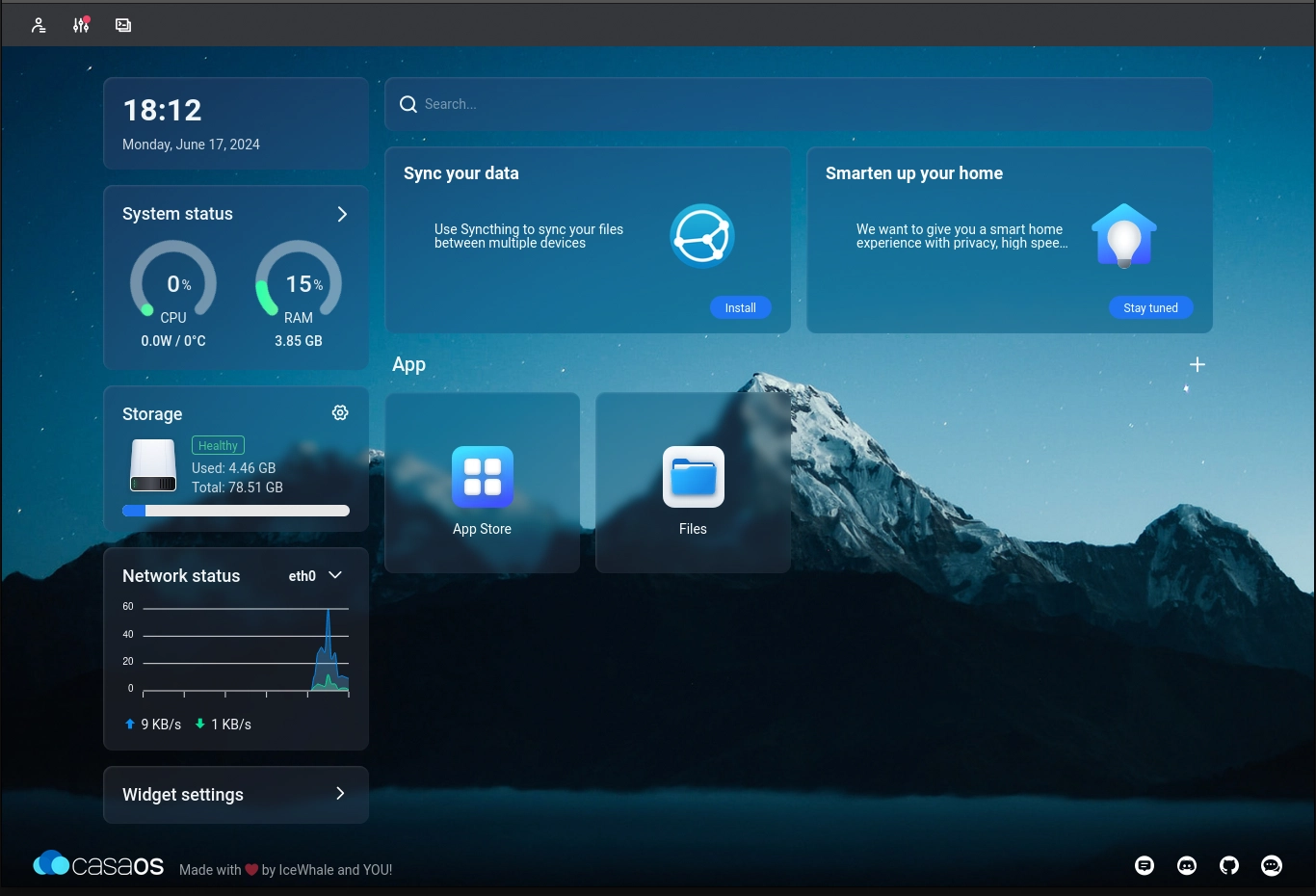
Now we are ready to create our Minecraft server.
Step # 3 : Setting up Crafty
Crafty-controller is a easy to use Minecraft server wrapper. Crafty helps you to manage multiple minecraft server in a web-interface with beautiful UI to make our work easy.
Installation
Open the Casa Os store and search for Crafty and download the app. After the installation is complete click on the crafty icon to open the crafty web-interface in your browser. The default credentials on login page are :
- Username :
admin - password :
crafty
you can also find the password in app/config/default-creds
Creating a Server
In your crafty Dashboard go to Server > Create a Server . From here we can import an existing server or create a new one.
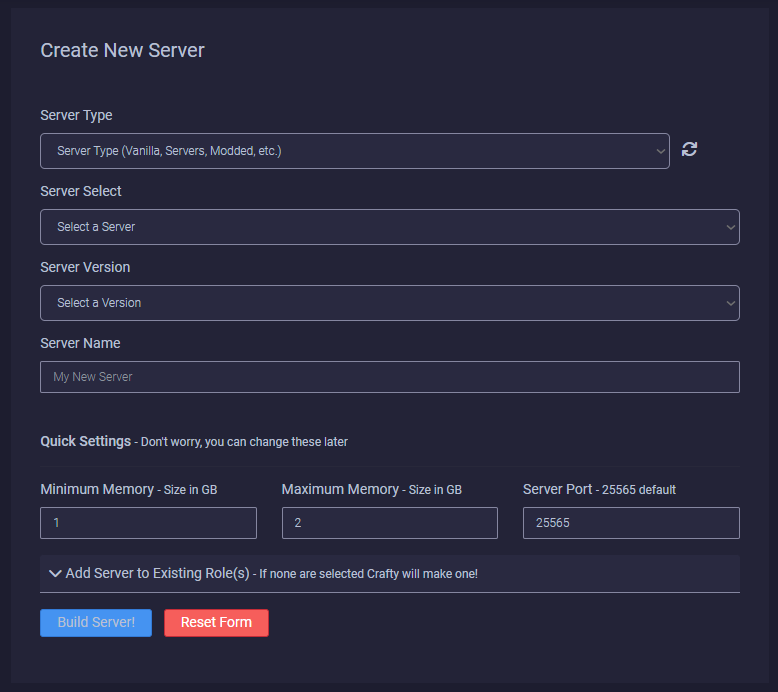
- Server Type : Select the type
serverin the dropdown - Server Select : Select
paperfor best performance - Server Version : Select the minecraft version you want
- Server name : Enter a name for your server
- Minimum RAM : Minimum amount of system RAM
- Maximum RAM : Maximum amount of system RAM
- Port : Minecraft server port (leave this if you are beginner)
This will create a Paper server that provides the best performance and allow pluggins to run.
Info
If you are using cracked minecraft account you have to set online-mode = false in server.properties file
Step # 4 : Setup Tunnel Service
At this point our server is on local network. This means your friends can’t join it yet. To fix this we will use a method called Tunneling. This creates a safe route for your friend to join your server through internet. The other method is port-forwarding. However, it is not recommended due to security concerns.
Ngrok
The Tunneling service that we will be using is ngrok. If you did not install Docker during the Ubuntu installation, you can do so by following this guide.
Installation
Install ngrok via Docker with the following command:
docker pull ngrok/ngrok
Configure Auth Token
Use this command to add auth token in your ngrok.yml
ngrok config add-authtoken $YOUR_AUTHTOKEN
Make sure to replace #YOUR_AUTHTOKEN with your own AuthToken by following this link.
Note
You have to create an Ngrok account to get an AuthToken
Start your Tunnel
This commands start your tcp tunnel for minecraft with port 25565
ngrok tcp 25565 // default minecraft port
After running this command you will get the ip address of your server.
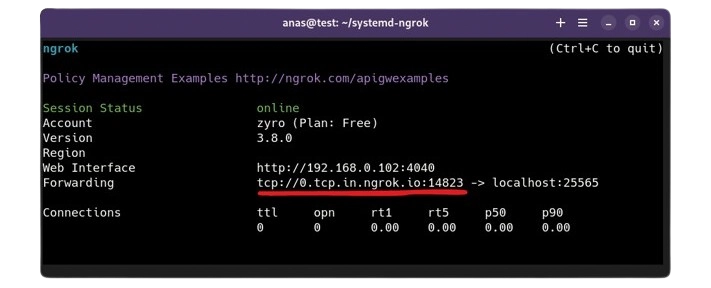
Note : Ngrok can also be run as a service by using a github repo ngrok-systemd
Step # 5 : Configuring Minecraft Server
Before starting to configure your server its important that you make your self an OP. For this run command in the server console.
op your_minecraft_name
Optimizing Server files
Optimizing default minecraft server files improves performance and reduce server load. In your server directory there are three important config files Bukkit.yml, Spigot.yml and Paper-world-default.yml. The first two files are located in the root directory however the paper-world-default.yml is located inside the configs folder. Remove all the content inside these files and paste the lines given below
Bukkit.yml
spawn-limits:
  monsters: 50
  animals: 8
  water-animals: 7
  water-ambient: 10
  water-underground-creature: 5
  ambient: 1

chunk-gc:
  period-in-ticks: 400

ticks-per:
  animal-spawns: 400
  monster-spawns: 5
  water-spawns: 11
  water-ambient-spawns: 21
  water-underground-creature-spawns: 11
  ambient-spawns: 31
  autosave: 6000
spigot.yml
save-user-cache-on-stop-only: true
max-tick-time:
  tile: 10
  entity: 20
mob-spawn-range: 6
entity-activation-range:
  animals: 16
  monsters: 24
  raiders: 48
  misc: 8
  water: 16
  villagers: 24
  flying-monsters: 24
merge-radius:
  exp: 4.0
  item: 6.0
tick-inactive-villagers: false
nerf-spawner-mobs: true
arrow-despawn-rate: 300
trident-despawn-rate: 300
paper-world-default.yml
max-auto-save-chunks-per-tick: 6
optimize-explosions: true
disable-chest-cat-detection: true
max-entity-collisions: 2
container-update: 3
grass-spread: 4
mob-spawner: 3
despawn-ranges: # In 1.18+, use this setting for all despawn ranges.
  soft: 28
  hard: 96
hopper:
  cooldown-when-full: true
  disable-move-event: true
non-player-arrow-despawn-rate: default
creative-arrow-despawn-rate: default
prevent-moving-into-unloaded-chunks: true
redstone-implementation: EIGENCRAFT
armor-stands:
  do-collision-entity-lookups: false
  tick: false
  per-player-mob-spawns: true
  alt-item-despawn-rate:
    enabled: true
    items:
      COBBLESTONE: 300
      NETHERRACK: 300
      SAND: 300
      DIRT: 300
      GRAVEL: 300
anti-xray:
  enabled: false
  engine-mode: 2
Configuring Server.properties file
This file contain all the important properties related to your server and minecraft world. You can change your server setting by configuring Server.properties file in your server’s root directory. Here is a easy Guide to configure server.properties according to your need.
Note
You can add your own world seed from server.properties file
Essential Minecraft Plugins
- Chunky : Improve server Performance by pre-generating chunks
- SimpleTpa : Allow players to send teleport(tp) request to other players
- ClearLagg : Removes useless entities and prevent lag
Download these pluggins and upload them into your pluggins folder present in the root directory. After this restart the server and you are good to go.
Minimum player sleep
Another problem in minecraft server is sleep cycle . In order to skip the night all players should be sleeping simultaneouly. Fortunatly, the solution is quiet simple.
/gamerule playersSleepingPercentage <value>
<value> is the number in percentage. For example, 30 means 30% of the total players should be sleeping in order to skip the night.
Tip
To start your server run ngrok tcp 25565